Wallaroo AI Starter Kit Image-Based Product Description Deployment Guide
This tutorial and the assets can be downloaded as part of the Wallaroo Tutorials repository.
Wallaroo AI Starter Kit for IBM: Image-Based Product Description Deployment Guide
This tutorial demonstrates how to use the Wallaroo AI Starter Kit for IBM Power to deploy the Image-Based Product Description model in an IBM Logical Partition (LPAR).
Prerequisites
Before starting, verify that the Wallaroo AI Start Kit LPAR (Logical Partition) Prerequisites are complete.
Procedure
Retrieve the Deployment Command
Navigate to the Wallaroo AI Starter Kit URL.
Select the Model Card for the Wallaroo AI Starter Kit - Image-Based Product Description
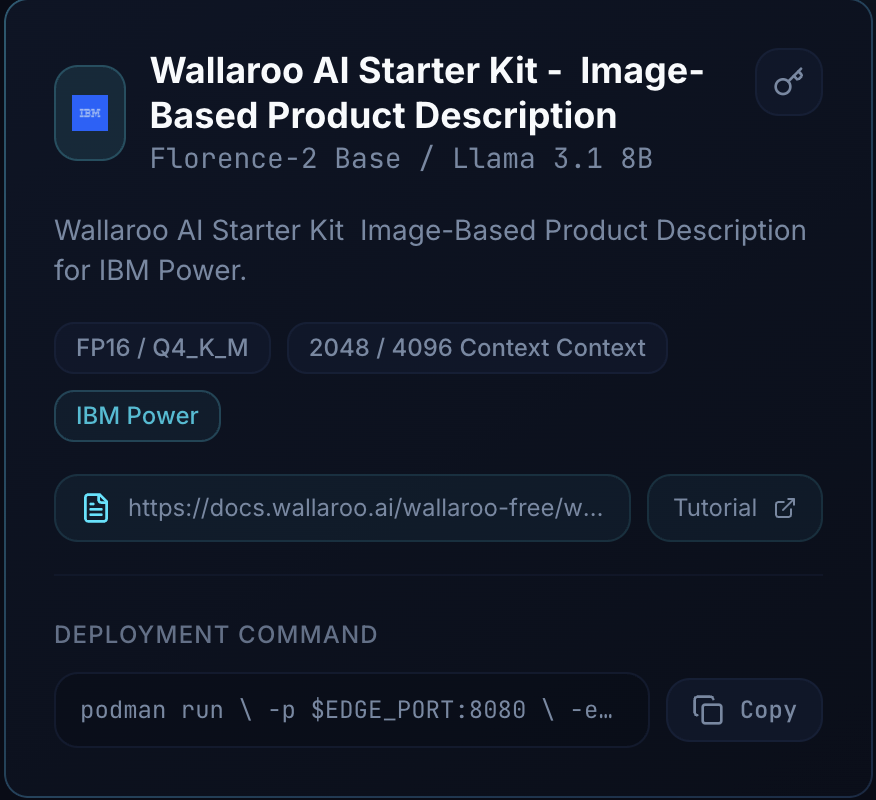
Copy the Deployment Command.
The following shows an example of this command.
podman run \
    -p $EDGE_PORT:8080 \
    -e OCI_USERNAME="$USERNAME" \
    -e OCI_PASSWORD="$GENERATED_TOKEN" \
    -e SYSTEM_PROMPT="$SYSTEM_PROMPT" \
    -e PIPELINE_URL=quay.io/wallarooai/wask/wask-pipe:1262212b-af36-4173-adc7-ed91032093a4 \
    -e CONFIG_CPUS=7 --cpus=15.0 --memory=20g \
    quay.io/wallarooai/wask/fitzroy-mini-ppc64le:v2025.2.2-6555
Note: The Generated Token is provided by the Wallaroo team. If this token is lost, please reach out to the Wallaroo team to receive a new token.
Set the Deployment Command
Login to the LPAR through a terminal shell - for example, ssh.
- Set the following variables:
EDGE_PORT: The external IP port used to make inference requests. Verify this port is open and accessible from the requesting systems.SYSTEM_PROMPT: This is a system prompt, for example: “Turn image captions into concise ecommerce product copy without adding new details.”
The following shows an example of these values declared in the command:
podman run \
    -p 3030:8080 \
    -e OCI_USERNAME="$USERNAME" \
    -e OCI_PASSWORD="$GENERATED_TOKEN" \
    -e SYSTEM_PROMPT="Turn image captions into concise ecommerce product copy without adding new details." \
    -e PIPELINE_URL=quay.io/wallarooai/wask/wask-pipe:1262212b-af36-4173-adc7-ed91032093a4 \
    -e CONFIG_CPUS=7 --cpus=15.0 --memory=20g \
    quay.io/wallarooai/wask/fitzroy-mini-ppc64le:v2025.2.2-6555
Once configured, deploy the model by running the updated Deploy Command for your environment.
Inference
Inference requests are made by submitting Apache Arrow tables or Pandas Tables in Record Format as JSON.
The Inference URL is in the format:
$HOSTNAME:$PORT/infer
For example, if the hostname is localhost and the port is 3030, the Inference URL is:
localhost:3030/infer
The following shows an example of performing the inference request on the deployed Image-Based Product Description via the curl command.
Note: this command is run within a Jupyter Notebook for the tutorial; in a terminal shell, remove the !curl and replace it with curl.
!curl POST localhost:3030/infer \
   -H "Content-Type: application/json" \
   -v --data @shirt.json
{"generated_text":"Our red polka dot shirt is perfect for any occasion. With its short sleeves and button-down collar, it's comfortable and stylish. Made of hig* Connection #1 to host localhost left intact
h-quality cotton, it's sure to last. Pair it with jeans or shorts for a casual look or dress it up with a blazer for a more formal event. Whether you're going out or staying in, our red polka dot shirt is a must-have for your wardrobe."},"anomaly":{"count":0},"metadata":{"last_model":"{\"model_name\":\"wask-desc\",\"model_sha\":\"80188e6cea129eebb89c8c1a12afb4d1cd25f2e622c6106bfca6a1fb1fe0fdf6\"}","pipeline_version":"1262212b-af36-4173-adc7-ed91032093a4","elapsed":[4287098470,123762117782],"dropped":[],"partition":"b75b33d352d4"}}